
Description
Dear buyers
when you can’t use this pen, or the pen can’t be used due to improper settings, please watch our video introduction and carefully and seriously, because many problems are not quality problems, but tablet settings problems, don’t misunderstand them as quality problems. Please.
Notice:
1. Tablet devices and pens cannot be used while charging.
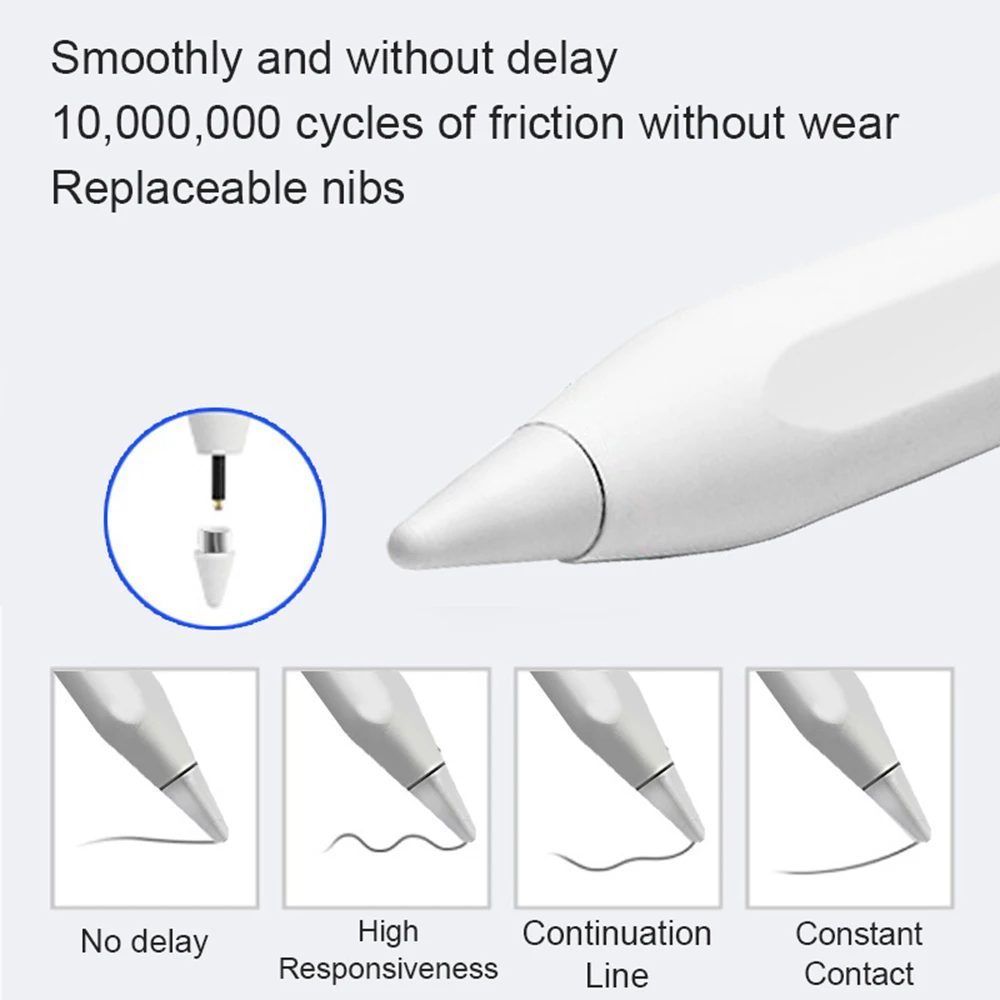
2. The tempered film on the flat plate is too thick and affects the sensing. We are equipped with a piercing pen tip, and the instruction manual also clearly states this kind of clearance. If the contact is insensitive, a penetrating pen tip can be used.
3. The device has been connected to other capacitive pens and needs to be disconnected. You must open other capacitive pens before you can connect a new capacitive pen. Our manual has relevant instructions.
4. During use of the capacitive pen, your hands cannot touch the screen. The touch screen cannot be used (the manual has relevant instructions), or use an anti-accidental touch finger. set.
5.The universal pen needs to be tilted at least 15 degrees to write normally, and it cannot be used vertically.
6.Do not use Apple type-c tcharging cable for charging
If the pen can drag the screen but cannot write, please note that this is a software setting problem, not a pen problem.
1、SketchBook
1. Open the “SketchBook” software.
2. Click on the “Main Menu”.
3. Click on “Preferences”.
4. Click onGeneral”.
5. Turn on/off “Pen Mode”.
2、Procreate
1. Open the “Procreate” software
2. Click the top left corner of the painting interface, click the wrench
3. Click on gesture control
4. Select enable finger painting
3、GoodNote
1. Open the “GoodNote” software
2. Click on the top right corner of the painting page, click on the three option
3. Scroll down to select the stylus and prevent accidental touches
4. Click on the smart stylus, select none inside
4、NOtability
1. Open the “Notability” app
2. Open the drawing page, click the three dots option in the top right corner
3. Click Information, disconnect Apple Pencil
5、Notes
1. Update to the latest version
2. Open the “Notes ” app
3. Click on the painting page and select the three in the lower right corner
4. Click on the pen palette settings and scroll to the bottom 5. Turn on finger painting
6.Apple iPad Notes
1. Open the tablet settings and find Apple Pencil
2. Turn off Scribble and Doodle
3. Open the page and select the stroke
7.Paint the World
1. Open the “Paint the World” software
2. Open the painting page, click the gear in the top corner
4. Close “Pen Mode”
8.Noteshelf
1. Open the “Noteshelf” software
2. Open the drawing page, click the three dots in the top right
3. Select the stylus
4. Turn off the “Apple Pencil” mode





Reviews
There are no reviews yet.